Physical Address
304 North Cardinal St.
Dorchester Center, MA 02124
Physical Address
304 North Cardinal St.
Dorchester Center, MA 02124

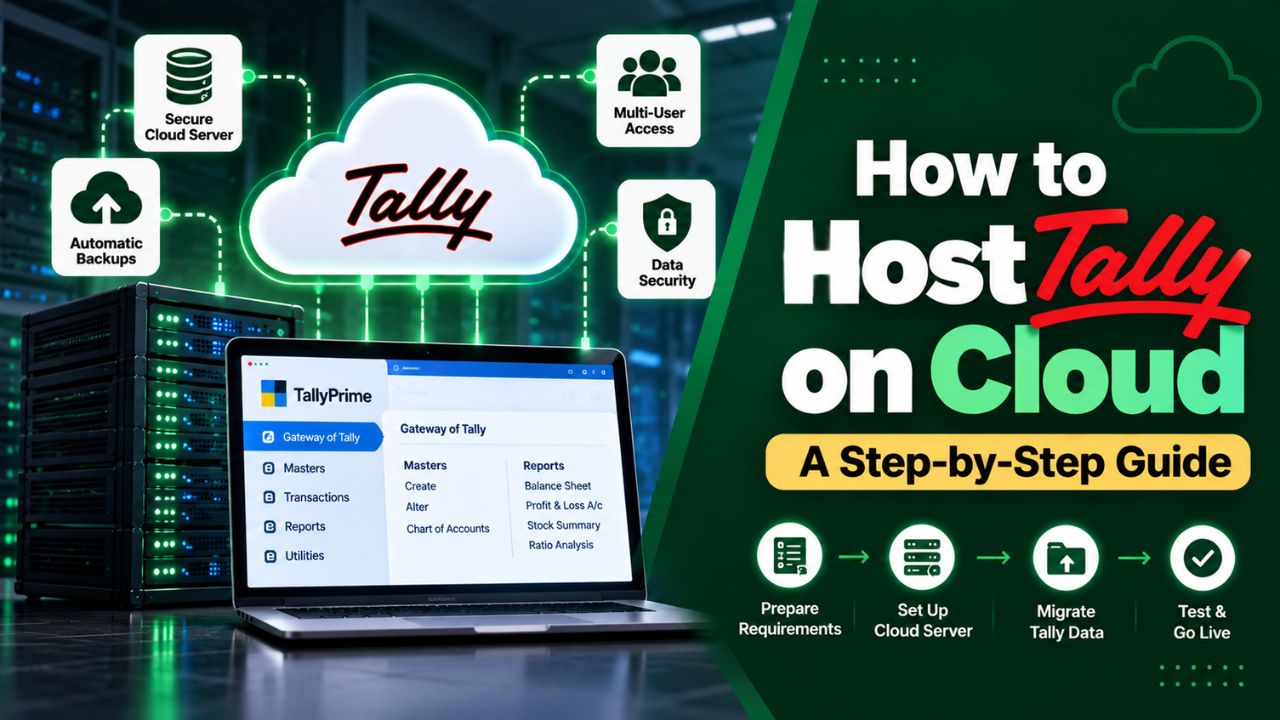
| Quick Summary: To host Tally on the cloud with a managed provider, choose a reliable hosting company, select a plan based on users and data size, and share your Tally license details. Take a full data backup, let your provider set up the server for you, and migrate your data. Follow the right steps here, test everything, and go live. |
Hosting Tally on the cloud lets businesses access TallyPrime or Tally ERP 9 from anywhere using a laptop, desktop, or tablet with an internet connection.
Instead of installing Tally on one office computer, your software and company data are stored securely on a cloud server, enabling remote work, multi-user collaboration, and automatic backups with stronger data protection.
This step-by-step guide is designed for business owners, accountants, and IT teams who want a simple, practical way to move Tally online.
It covers choosing a reliable cloud provider, setting up the server, and maintaining the system for smooth, secure accounting operations.
Let’s start.
Hosting Tally on the Cloud means running your regular TallyPrime software on a remote Windows server instead of installing it on one office computer. Your team connects to that server securely over the internet.
It is commonly done through Remote Desktop Protocol (RDP), and your team uses Tally as if it were installed on their own device.
In simple terms, TallyPrime and your company data stay in one central cloud location.
You do not need to copy backups, email data files, or maintain separate versions at the office, home, or branch locations.

Before moving Tally to the cloud, make sure these essentials are in place. They help ensure a smooth setup, safe data migration, and uninterrupted access for your team members. These include:
Once everything is ready, you can migrate Tally smoothly and let your team work on the same live data from anywhere.
The right server size depends mainly on the number of concurrent users you have and the size of your Tally company data.
| Note: Tally recommends calculating RAM from average usage per user and the number of active Tally instances. |
Recommended Sizing:
| Business Type / Users | CPU, RAM | Storage |
| Small team/single business; 1-2 users. | 2-4 vCPU; 8-16 GB | 100-150 GB SSD |
| Growing business; 3-8 users. | 4-8 vCPU; 16-32 GB | 150-250 GB SSD |
| CA firm/accounting firm; 5-25 users. | 8-16 vCPU; 32-64 GB | 250-500 GB SSD |
| Large enterprise; 25+ users. | 16+ vCPU; 64+ GB | Custom, based on data backups. |
These ranges align with the common Tally cloud hosting plans, from small setups to large enterprises. Pick the size that fits your users and data so Tally runs smoothly.
The cost of hosting Tally on the cloud depends on the number of users, the RAM and storage you need, and the backup and support options included in the plan. A single-user setup costs far less than a multi-user setup for a CA firm. Before you order, check the provider’s Tally on Cloud pricing page, confirm what is included, and make sure there are no extra charges for backups or data migration.
With Tally on a local PC, your data lives on one machine, so remote access, multi-user work, and backups all depend on that computer. With Tally on the cloud, the data sits on a central server that your team can reach from anywhere, and backups and security are handled in one place. The trade-off is a monthly hosting fee and the need for a stable internet connection.
Here is how to host Tally on the cloud, step by step. A managed provider sets up the cloud server, installs Tally, migrates your data, and handles backups and maintenance.
You mainly need to provide your Tally license details and user requirements.
![How to Host Tally on Cloud: A Step-by-Step Guide ([current_date format='Y'])](https://freedjango.com/wp-content/uploads/2026/10/image-12-1024x563.png)
| Note: We have chosen QloudRDP to show you the simple steps; some of the steps will vary from provider to provider. You can choose a provider based on your requirements. |
![How to Host Tally on Cloud: A Step-by-Step Guide ([current_date format='Y'])](https://freedjango.com/wp-content/uploads/2026/10/image-11-1024x678.png)
![How to Host Tally on Cloud: A Step-by-Step Guide ([current_date format='Y'])](https://freedjango.com/wp-content/uploads/2026/10/image-10.png)
You can set up TallyPrime on the cloud server in either of these ways:
![How to Host Tally on Cloud: A Step-by-Step Guide ([current_date format='Y'])](https://freedjango.com/wp-content/uploads/2026/10/image-14-1024x530.png)
![How to Host Tally on Cloud: A Step-by-Step Guide ([current_date format='Y'])](https://freedjango.com/wp-content/uploads/2026/10/image-13-1024x534.png)
Once you select an option, you can set up or modify your TallyPrime environment as needed.
| Note: In case you need to migrate your old data, you can contact the support team of your provider. |
Securing your hosted Tally environment is essential because it stores sensitive financial records and is accessed remotely by multiple users.
You can use layered protection like network controls, strong authentication, and reliable backups. These measures reduce the risk of unauthorized access or data loss.
A secure hosted Tally setup protects your financial data and keeps your business running without disruption. By following all of these, you can safely give your team reliable access to Tally from anywhere.
Yes, you can host Tally on the cloud yourself by setting up a Windows cloud server and installing TallyPrime through Remote Desktop Protocol (RDP). However, you will also have to handle security, backups, and maintenance, which is why most businesses prefer a managed provider.
No, you don’t need a new license to host Tally on the cloud if you already have a valid license.
Setup usually takes a few minutes to a few hours, depending on your provider. Some providers deliver within minutes, while others take longer.
Avoid these common mistakes when hosting Tally on the cloud:
• Skipping daily backups.
• Sharing one login across all users.
• Choosing the cheapest plan without checking performance.
• Giving all your staff full access.
• Not confirming the license type and user limit.
Yes, if you use the Tally multi-user license, such as the TallyPrime Gold License, rather than the single-user license.
Yes, hosting Tally on the cloud is safe when you choose an enterprise-grade cloud provider with proper security layers, such as firewalls, MFA, antivirus, and daily backups.
Schedule automated daily backups of your Tally data folder and store the copies away from the live server. Most managed providers do this for you, but you should still download a manual backup before any major update or migration.
Yes. You can connect to your cloud server from an Android or iOS phone using a Remote Desktop app and your login details. A laptop or desktop is more comfortable for heavy data entry, but mobile access works well for quick checks and reports.
The cost depends on the number of users, RAM, storage, and backup options. Compare the plans on your provider’s Tally on Cloud page and check what is included before you order.
Hosting Tally on the cloud lets you and your team access Tally from anywhere using the internet.
Your data stays safe on a central cloud server, so everyone works on the same updated information. When you have the right server, a valid Tally license, regular backups, and strong security, your accounting work becomes much easier and faster.
Tally on the cloud is useful for small businesses, CA firms, and teams working from different locations. It keeps your accounting simple and reliable, and you no longer have to track files or pen drives because everything lives in one place.